Make your first book
Everything happens in the studio, from the first character description to the print-ready PDF you upload to Amazon KDP. No design tool, no layout software. Here is the whole path, in order.
Describe your hero
One plain sentence, age, hair, eyes, a memorable detail or two, and the outfit. The engine turns it into two reference images (full body and face close-up, 2 credits) that keep your hero identical on every page.
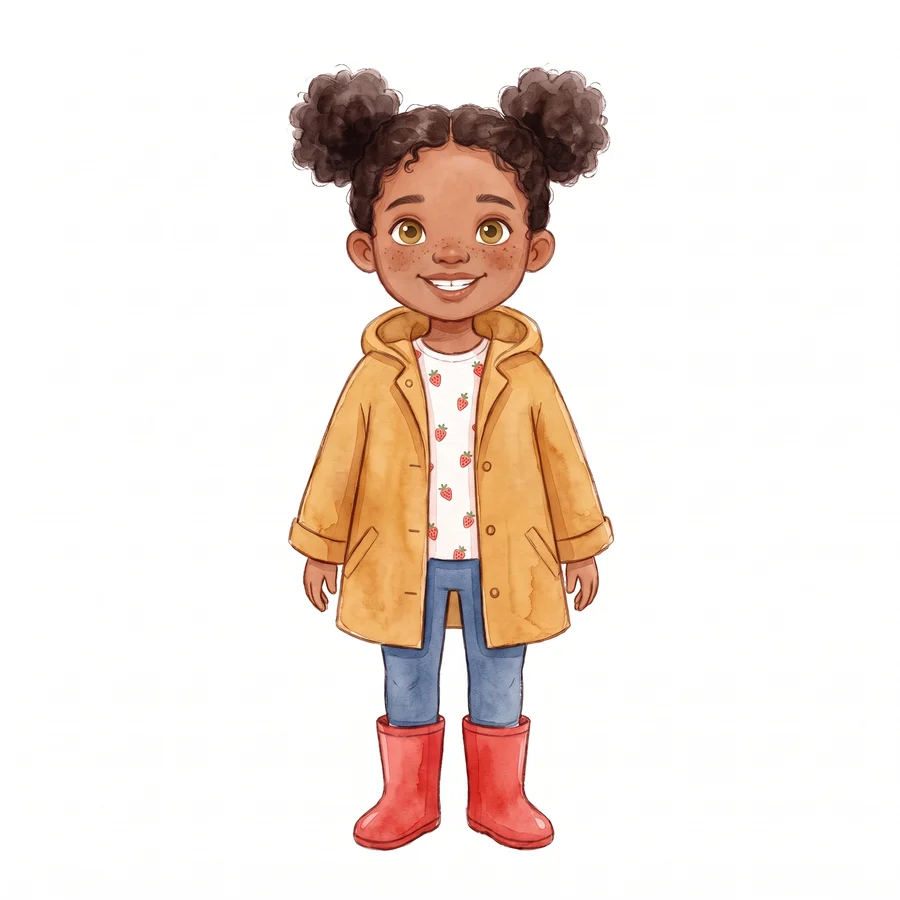
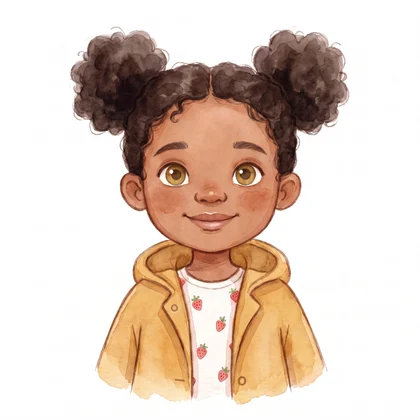
Add your places
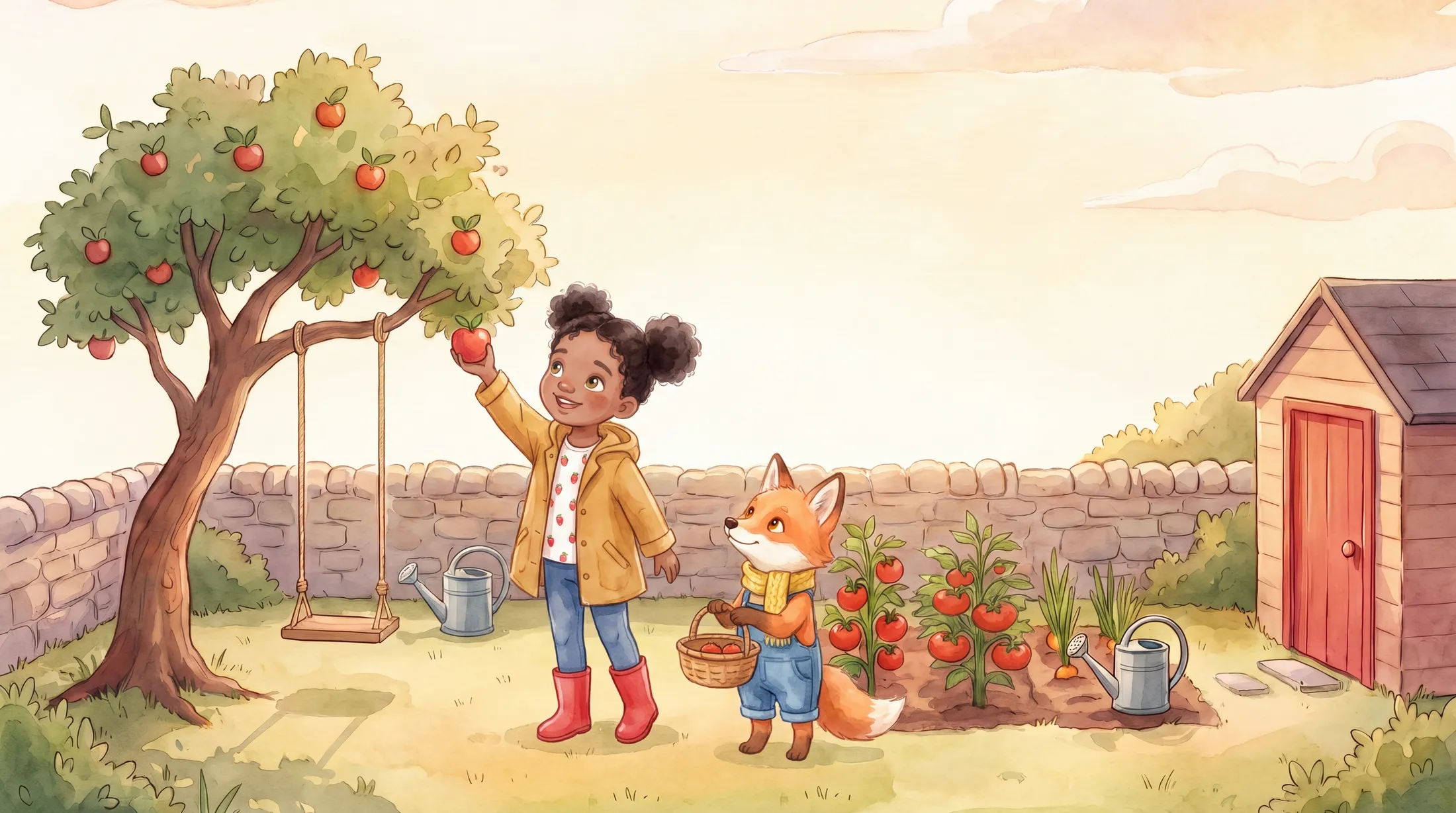
Describe each location the same way. A place is drawn once and reused, the garden on page 2 is the same garden on page 9. Need it at night? One sentence creates a variation of the same place.
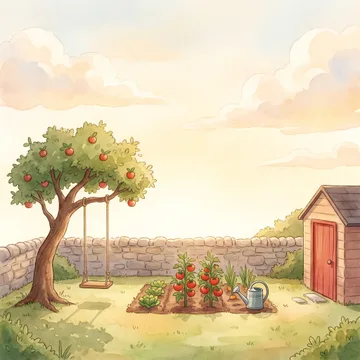
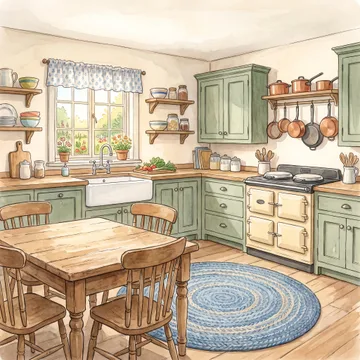
Tell the story page by page
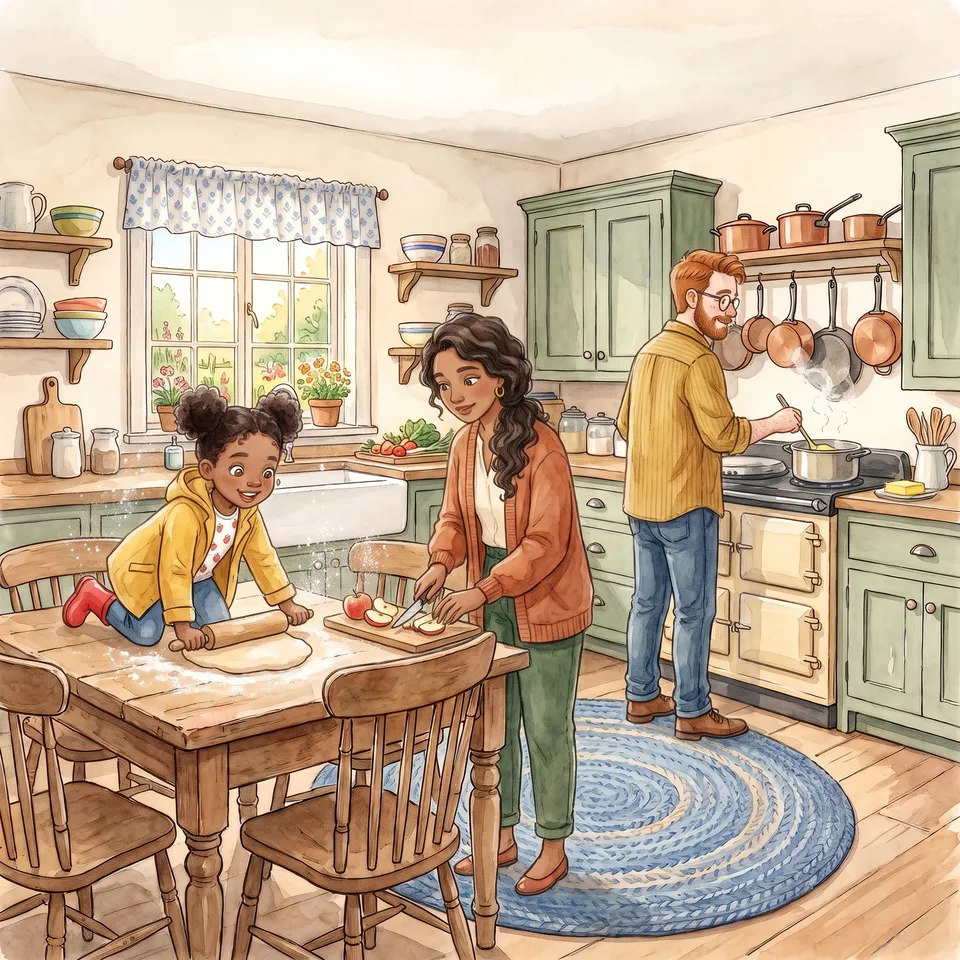
For each page: pick who is in it, pick where it happens, and say what happens in plain words. Each image costs 1 credit, and an automated quality check inspects it , characters, sizes, details, before you ever see it.
Add your story text
Type the words for each page right in the studio, narration, dialogue, all of it. No text boxes to position in another tool; the layout is handled for you.
- Keep it short, one to three sentences per page reads best aloud
- Read it out loud, picture books are heard more than they are read
Preview real spreads
See your book as actual spreads, image and text laid out exactly as they will print. Flip through, catch the page that reads wrong, fix it before export.
Export for Amazon KDP
One click exports a print-ready KDP interior PDF, correct trim size and bleed, embedded fonts, and the AI-disclosure page Amazon asks for. Then head to KDP to publish.
- Sign in at kdp.amazon.com and create a new paperback
- Upload the interior PDF you exported from the studio
- Add a cover, KDP’s Cover Calculator gives the exact dimensions for your page count
- Set your price and submit, review usually takes 24 to 72 hours
Want to see what a finished book looks like before you start? Look inside a real book, every page unedited, prompts included.